A. Setup your Holman Home device in Google Home
1. Getting Started - Before using Google Home to control your devices, check you have the following:
- a Google Home device, or Android phone with Google Assistant
- the latest Google Home app or Google app (Android only) setup with your Google Home device, or Android phone with Google Assistant installed
- a Holman Home smart device. For example: WX8 Irrigation Controller, RGB or WW Garden Light, Wi-Fi Hub or WX1 Tap Timer
2. Setup and add your Holman Home smart device to your Holman Home app
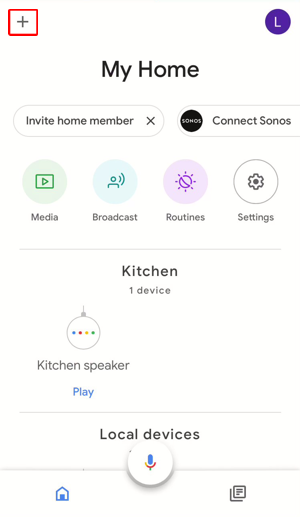
3. Start the Google Home app and a screen similar to the one below should display
Choose + in the top left hand corner
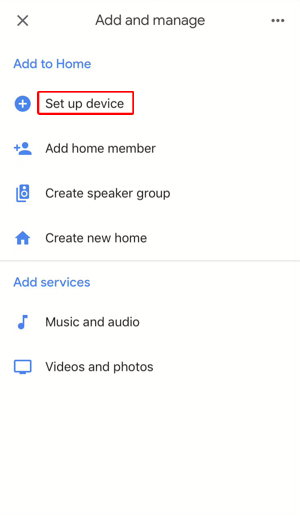
4. Choose 'Set up device'
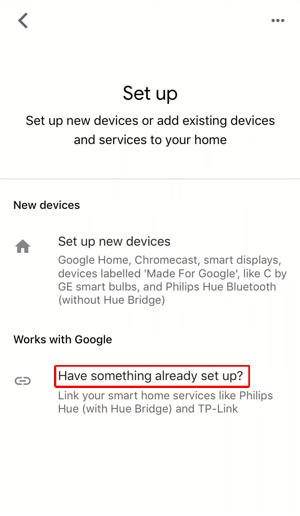
5. Choose 'Have something already set up?'
6a. If Holman Home shows as Linked, choose Holman Home and then choose Check for new devices. Now scroll down to step 10.
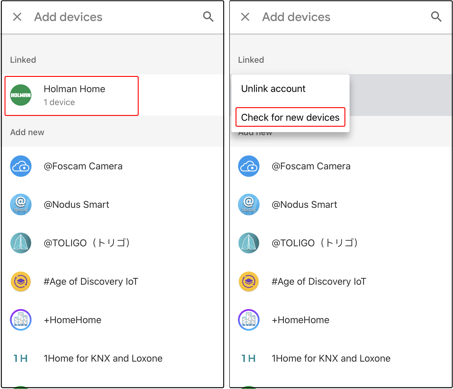
6b. Otherwise choose the Search icon in the top right hand corner
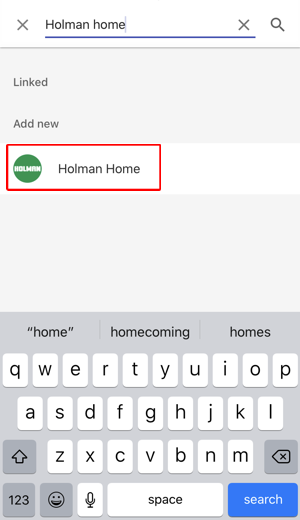
7. Type Holman Home at the top and then choose Holman Home from the list
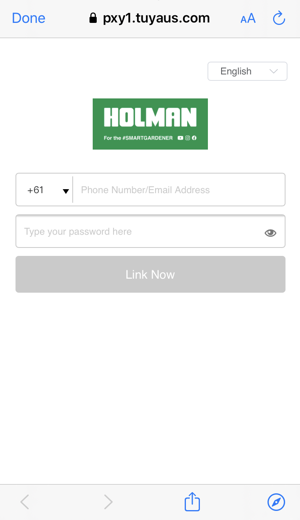
8. Enter your Holman Home app login details. Then choose Link Now
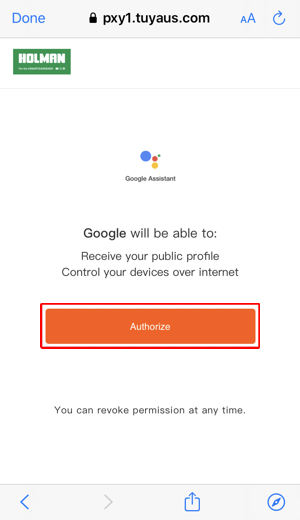
9. Choose Authorize to allow Google to access your devices
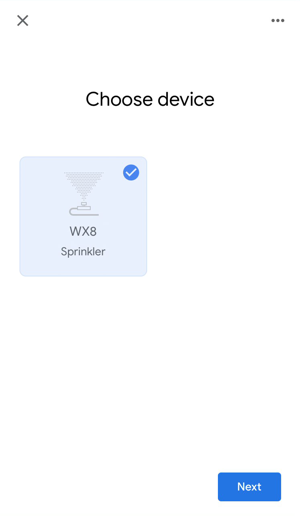
10. You will need to wait a minute or two while Google accesses your device. Once a connection has been made you can select your Holman Home device (a Sprinkler in the example below) and then choose Next
11. My Home is the default location or Create another home. Then choose Next
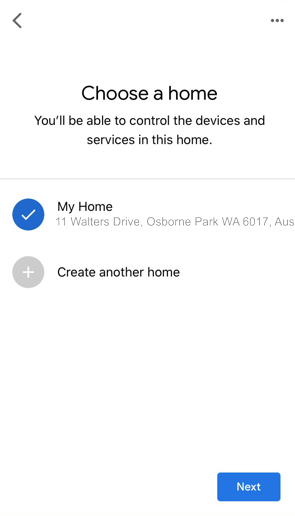
12. Choose a location for your Holman Home device (a Sprinkler in the example below) and then choose Next
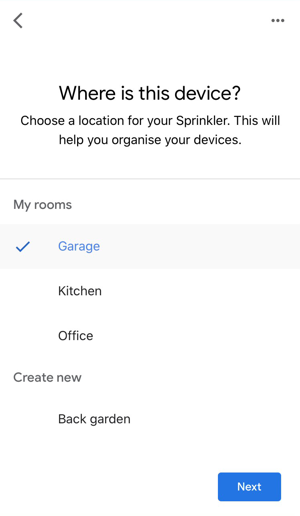
13. Your Holman Home device (WX8 in this example) is now showing on your Home control screen. You can turn your Holman Home device on and off from this screen
- Note:
- For the WX8, if the dial position is RUN, then turning on the device via Google Home means you will water using the zones setup in START A, B or C depending on the START position on the device
- For the WX8, if the dial position is a zone (1-8) then turning on the device via Google Home means you will start that zone for the manual run time set
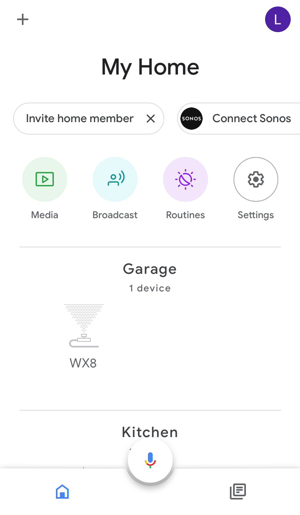
B. Voice control of your Holman Home device
Supported commands for the WX8 include:
- Ok Google, turn on WX8
- OK Google, WX8 on
- Ok Google, stop WX8
- OK Google, WX8 off
- Ok Google, is WX8 on?
- Ok Google, is WX8 off?
Supported commands for the RGB Garden Light include:
- OK Google, turn on RGB Garden Light
- OK Google, turn off RGB Garden Light
- OK Google, brighten RGB Garden Light
- OK Google, dim RGB Garden Light
- OK Google, set RGB Garden Light to 50%
- OK Google, set RGB Garden Light to green
- OK Google, is RGB Garden Light on?
Supported commands for the WW Garden Light include:
- OK Google, turn on WW Garden Light
- OK Google, turn off WW Garden Light
- OK Google, brighten WW Garden Light
- OK Google, dim WW Garden Light
- OK Google, set WW Garden Light to 50%
- OK Google, is WW Garden Light on?
Supported commands for the Wi-Fi Socket include:
- Ok Google, turn on Wi-Fi Socket
- OK Google, Wi-Fi Socket on
- Ok Google, stop Wi-Fi Socket
- OK Google, Wi-Fi Socket off
- Ok Google, is Wi-Fi Socket on?
- Ok Google, is Wi-Fi Socket off?
Supported commands for the WX1 Tap Timer include:
- Ok Google, turn on WX1 Tap Timer
- Ok Google, turn off WX1 Tap Timer
- OK Google, WX1 Tap Timer on
- Ok Google, WX1 Tap Timer off
- Ok Google, is WX1 Tap Timer on?
- Ok Google, is WX1 Tap Timer off?